How to Update Latest Mods Version Of Games and Apps through HappyMod APK?
HappyMod is a popular platform and Android marketplace where users can find thousands of modded games and apps with premium features like unlimited money, unlocked items, gold, diamonds, and mod menus completely for free. However, many users face the issue that when a game releases a new official version, their old mod stops working. That is why keeping modded apps updated is extremely important, so you can enjoy new features, benefit from security patches, and avoid crashes or “Update Required” errors.
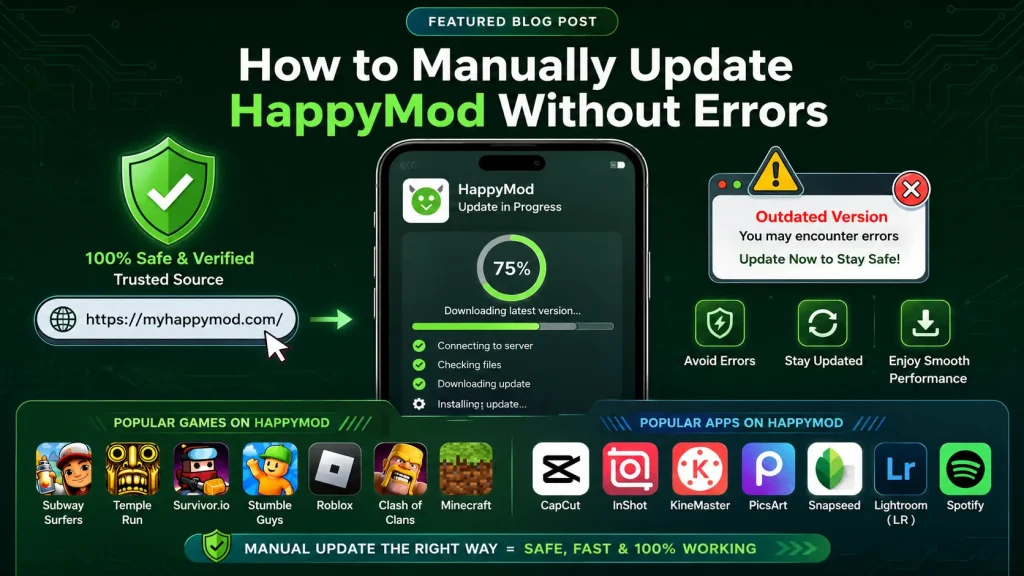
Many users wonder if it is possible to directly update an old modded version. The answer is yes, it is possible, but not as straightforward as updating normal apps. On HappyMod, you can manually check for the latest version and replace the old mod to get the newest features. In some cases, you may need to download and install a new APK file, but by following the correct method, you can switch to the latest version without losing your game data.
If you’re facing any error that downloading stuck at 0% then HappyMod Download Pending or Stuck at 0% this article would be very helpful for you.
Updating Games and Apps on HappyMod is Easy
The advantage of HappyMod Apk is that it is not as complicated as other third-party websites. It offers an Automatic Update Notifications feature that immediately alerts users as soon as a new mod version of their installed game or app is uploaded to the platform. You do not need to manually search the internet for new mods; the HappyMod app itself shows you an “Update” button, and with just one click, the download starts instantly.
Benefits of Latest Mods
Updating to the latest version not only fixes old bugs and glitches but also gives you access to new features. For example, new levels in a game, newly unlocked premium tools in apps, and, most importantly, improved Anti-Ban security. New updates ensure that modded features work according to the latest security patches, keeping your account safe and allowing you to enjoy a smooth, premium experience without interruptions.
How to Update Manually
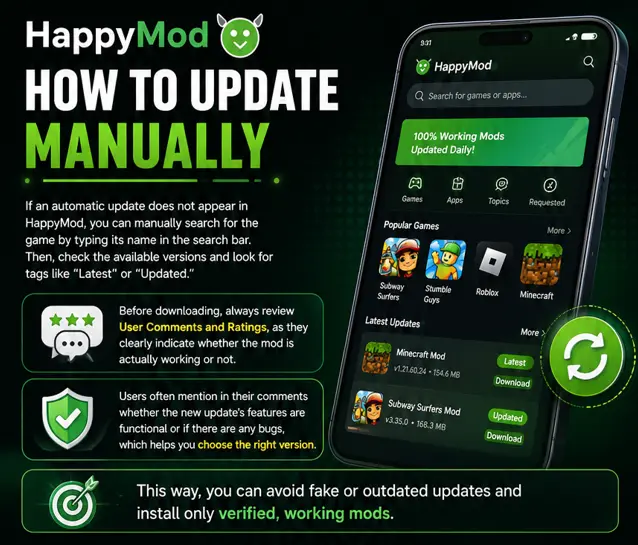
If an automatic update does not appear in HappyMod, you can manually search for the game by typing its name in the search bar. Then, check the available versions and look for tags like “Latest” or “Updated.” Before downloading, always review User Comments and Ratings, as they clearly indicate whether the mod is actually working or not. Users often mention in their comments whether the new update’s features are functional or if there are any bugs, which helps you choose the right version. This way, you can avoid fake or outdated updates and install only verified, working mods.
Step-by-Step Guide: How to Update to the Latest Mods
Updating any app or game on HappyMod Apk is extremely simple, but it is important that you have the official HappyMod Apk installed on your device. When you check for updates through the app, it automatically compares your installed apps with the latest versions available in its database. The advantage of this system is that you do not need to browse multiple websites looking for new links; everything is securely handled within a single interface. By following the steps below, you can easily update your favorite mods:
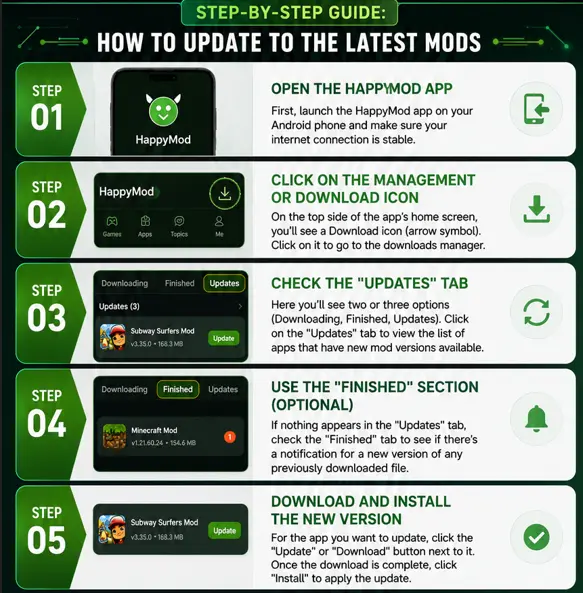
Step 1: Open the HappyMod App
First, launch the HappyMod app on your Android phone and make sure your internet connection is stable. Don’t worry Happymod apk is safe to use.
Step 2: Click on the Management or Download Icon
On the top side of the app’s home screen, you’ll see a Download icon (arrow symbol). Click on it to go to the downloads manager.
Step 3: Check the “Updates” Tab
Here you’ll see two or three options (Downloading, Finished, Updates). Click on the “Updates” tab to view the list of apps that have new mod versions available.
Step 4: Use the “Finished” Section (Optional)
If nothing appears in the “Updates” tab, check the “Finished” tab to see if there’s a notification for a new version of any previously downloaded file.
Step 5: Download and Install the New Version
For the app you want to update, click the “Update” or “Download” button next to it. Once the download is complete, click “Install” to apply the update.
Note: If you encounter an “App Not Installed” error while installing the update, first delete the old mod and then install the new version.
Important Tips: Backup and Reinstall
Often, modded apps cannot be updated directly because the signature (coding) of the new version may differ from the old version. In such cases, the best approach is to uninstall the old modded version and then download and install the new version from HappyMod. However, before doing this, it is very important to backup your game data so that your progress is not lost.
How to Save Game Data
- Cloud Sync: If the game offers a Facebook or Google login option and the mod developer has not blocked it, always sync your progress. After installing the new version, logging in will restore your saved data automatically.
- Local Backup: For offline games, go to your phone’s File Manager, locate the game files in Android > Data or OBB folder, and copy them to another folder. After installing the new version, paste these files back in the same location.
Conclusion
Keeping your games and apps updated through HappyMod Apk not only keeps you connected to new features but also improves your device’s security and the app’s performance. Although updating modded apps can be slightly different from updating regular apps, by following the steps and backup tips provided in this guide, you can enjoy the latest versions without any hassle. Always make sure to check user ratings and comments before starting a download to save your time and data.